Proximity Watch: A Lock for When I Walk Away
Yesterday I had one of those small thoughts that will not leave you alone.
My Mac already lets me in when I sit down wearing my Apple Watch. Apple calls it Auto Unlock, and it is a lovely little convenience. So it seemed only fair that it would work the other way too. Walk away, and the Mac locks behind me.
It does not.
Not even in macOS 27 Golden Gate, the newest version. There is no setting for "lock when I leave." So the screen stays open while you refill your coffee, answer the door, or get pulled into a hallway conversation. Your options are to remember Control-Command-Q every time you stand up, or to wait for the screen to time out while your inbox sits wide open.
Now, I know what you are thinking, because I thought it too. There are apps for this. A quick search turned up AwayLock, Near Lock, ProximityLock, and BLEUnlock, and Google was happy to confirm that a third-party utility is the only way to get there.
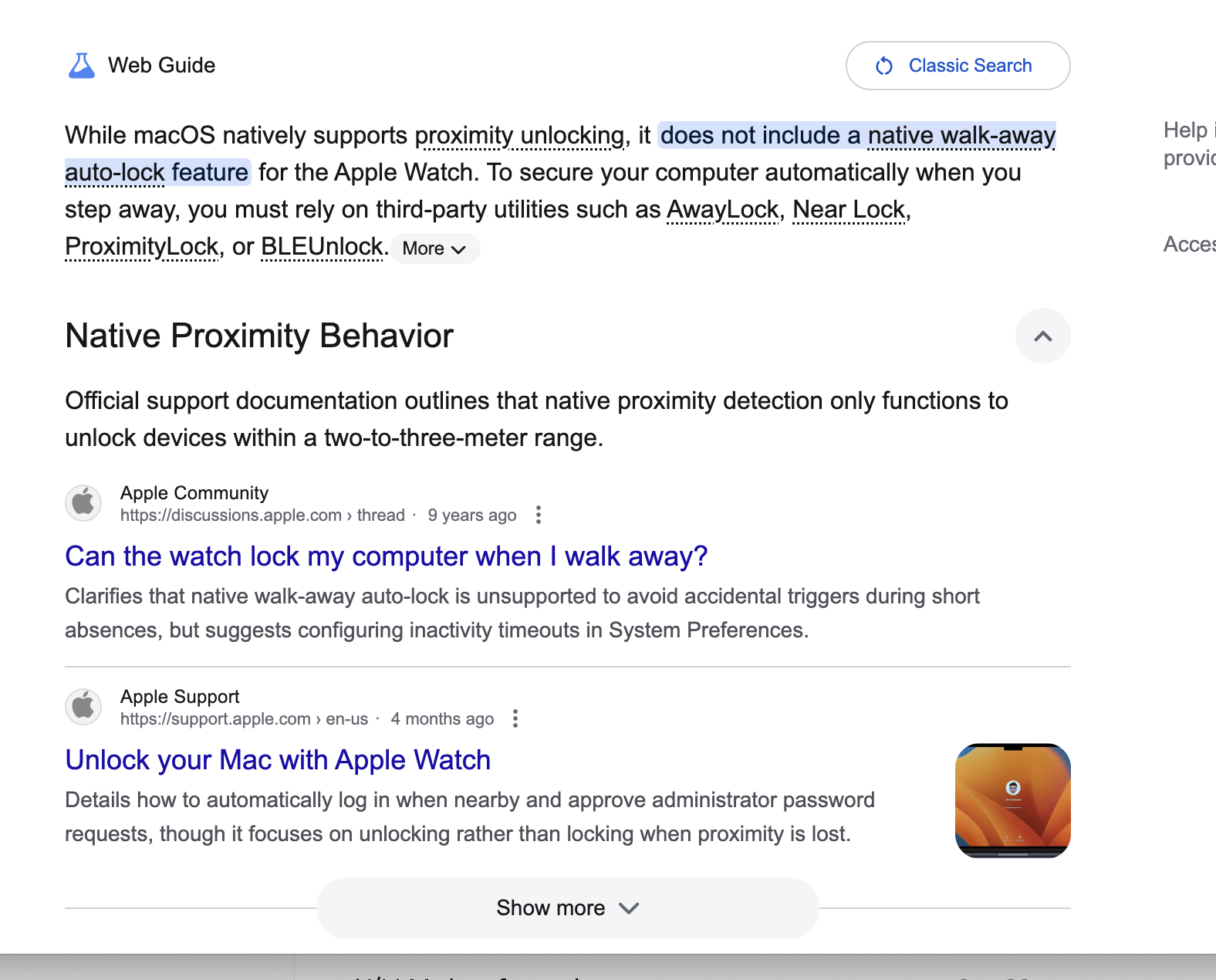
Even Google agreed. Apple handles the "let me in" half, and the "lock when I leave" half is up to you.
But I did not want to pay for one more utility. And by now I have built enough of my own little Mac apps to know this one was within reach.
So I built the fix. I call it Proximity Watch. It took less than 20 minutes and less than my daily allowance of Claude tokens.
What Proximity Watch actually does
Proximity Watch is a tiny menu bar app that listens to my watch's Bluetooth signal. It reads RSSI, which is short for received signal strength indicator, a number that says how loud the signal is. It is always negative, and closer to zero means closer to the Mac. With the watch on my wrist at the keyboard, it reads about -35 dB. When the signal drops below a number I choose, and stays there for a delay I choose, the Mac locks.
Here is the full rundown:
- A watch picker, so it follows my watch and nobody else's
- A lock threshold slider, from -100 dB to -50 dB, that decides how far counts as "away"
- A delay slider, from 3 to 60 seconds, so leaning back in my chair does not set it off
- A Lock now button for when I want to lock on purpose
- An Open at login switch, so it starts itself and I never think about it again
- Getting back in works exactly as before: password, Touch ID, or the watch
A few moments it is built for:
- "Stepping out for a coffee refill." The Mac locks a few seconds after I leave the room.
- "Sitting down without my watch." It never arms, so it cannot lock me out of my own computer.
- "Coming back to my desk." I log in the normal way, and it re-arms on its own once I am back at the keyboard with the watch on.
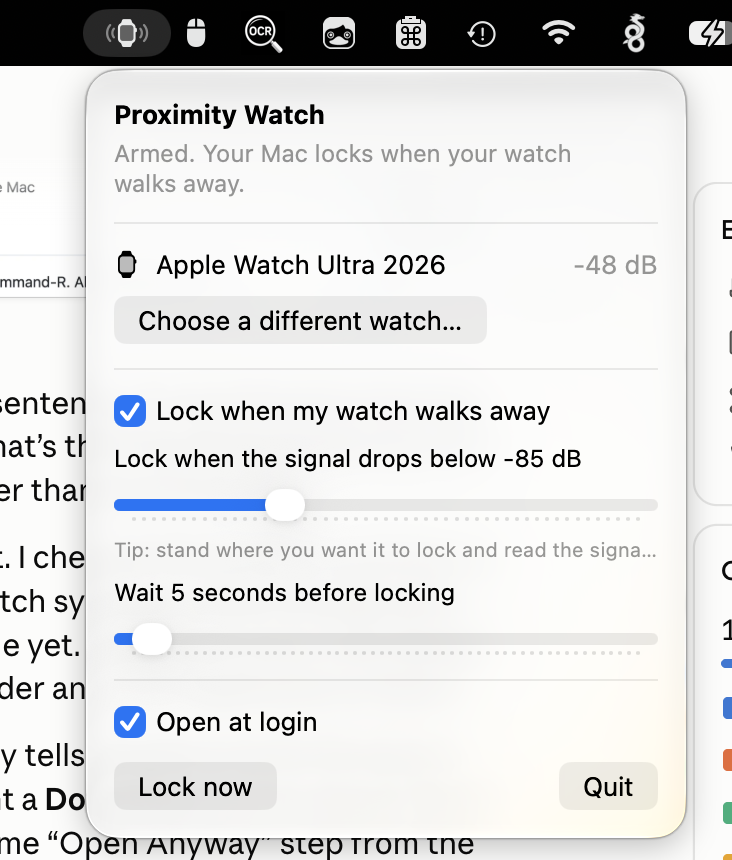
The whole app, in one menu. Mine is set to lock at -85 dB after 5 seconds, and the watch reads -48 dB sitting right at my keyboard.
It lives as a small watch icon in the menu bar. No Dock icon, no window, nothing else to manage.
This time the build was the short part
For the tinkerers in the crowd, here is what is under the hood.
What you need
To run it:
- A Mac running macOS 14 or later. It is a native menu bar app, and I run it on Golden Gate.
- An Apple Watch signed in to the same Apple ID as the Mac. That shared account is what lets the Mac recognize the watch at all (more on that below).
- Bluetooth permission. macOS asks for it once, the first time the app launches.
- Xcode 16 or later. There is no download yet, so you open the project in Xcode and press Command-R to build and run it. Xcode is free from the Mac App Store.
What I built it with:
- Claude Code. My building partner, from the idea to working code. I used Opus 5.5 on "Medium" effort.
- Xcode. Apple's free developer app, which turns the code into a running app.
- Swift and SwiftUI. Apple's own language and interface toolkit, so it feels at home on a Mac.
- CoreBluetooth. Apple's built-in framework for Bluetooth, which does the listening.
- GitHub. Where the code lives, free for anyone to look at.
Total cost: nothing beyond the AI subscription I already had. Total time: under 20 minutes.
Every second, the app checks the watch's signal and averages the last five readings, because a single reading bounces around depending on which way I am facing. The part I found fascinating is how it finds the watch at all. Apple devices change their Bluetooth address every 15 minutes or so for privacy, so a random app cannot follow them. My Mac can, because it shares my watch's Apple ID and holds the key that decodes those rotating addresses. When the averaged signal stays weak long enough, the app locks the screen the same way Control-Command-Q does.
One design choice I am happy with is what I think of as arm, then lock. The app only arms after it has seen the watch nearby while I was typing or moving the mouse in the last 30 seconds. If I sit down without the watch, it simply never arms. It also uses two lines instead of one: the signal has to come back 5 dB stronger than the lock line before it arms again. That gap is called hysteresis, and it is the same trick a thermostat uses so it does not click on and off every few seconds.
One thing that surprised me: the hardest part was not Bluetooth at all. It was getting Xcode to build. My Mac was pointed at Apple's smaller command line tools instead of the full Xcode app, so the build flat out refused to run. The fix was one setting that pointed that single build at Xcode, without changing anything system-wide.
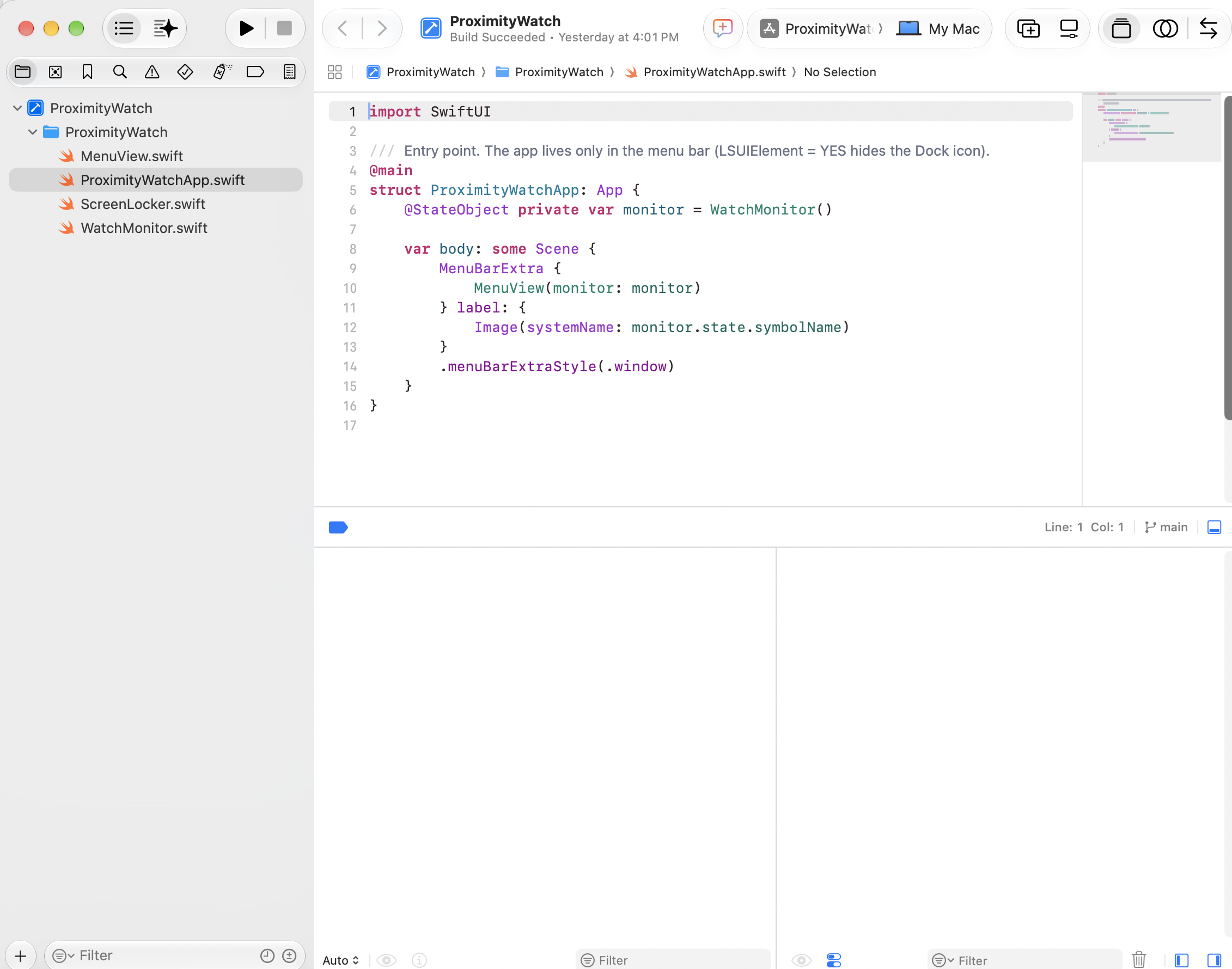
The whole project is four small Swift files, plus one very satisfying "Build Succeeded." Most of the thinking lives in the file that watches the Bluetooth signal.
Good enough, and then some
Let me be upfront. Bluetooth signal strength is a rough measure of distance, not a tape measure. Walls and your own body move the number, so expect a minute of tuning. The app's own tip is the best advice I have: stand where you want it to lock and read the signal.
It is also build-it-yourself for now, with no installer. And because Apple offers developers no official "lock now" button, it uses the same behind-the-scenes method other lock apps use. If Apple ever changes that, it falls back to sleeping the display.
I did not set out to build a product here. I set out to close one small gap.
And that gap is closed.
Why I keep doing this
There is a bigger point hiding in this little utility.
If you have read my other posts, you know this is becoming a habit. My first app, the Screenshot Catalog, took me a day. My second, MouseyHot, was a bigger stretch into native Mac code. This one went from "huh, that would be nice" to running on my Mac in less time than it takes to read the reviews on the paid options.
That is the part worth paying attention to.
The old math for an annoyance like this was simple. Live with it, or go shopping. Now building it is often the fastest option, and the result fits the way I work instead of almost.
It is the same lesson I keep relearning in different clothes. Fix the problem once, instead of managing it every day. Remembering to lock the screen is a tiny job, but it is a job forever. Put a self-closing hinge on the screen door and you never think about the door again.
That is what this little app is. A hinge.
So if there is one small thing your devices almost do, but not quite, this is your nudge. The barrier to building it yourself is now about the length of a coffee break. Go build the thing.
The code is on GitHub: github.com/technomaybe/Proximity-Watch.
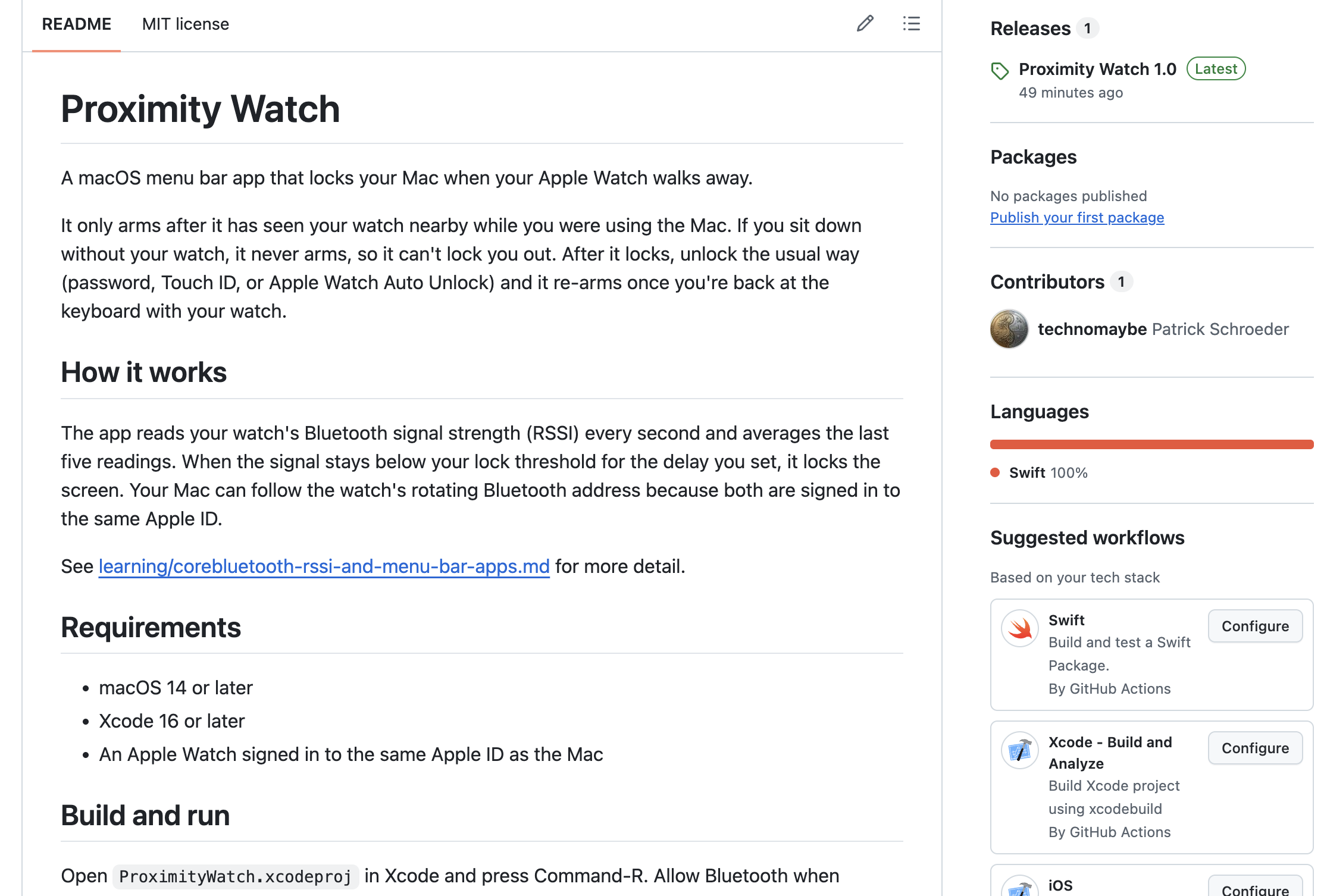
The repo is public under an MIT license, and Proximity Watch 1.0 is tagged as the first release.