MouseyHot: I Built a Second App So I Could Feed the First One
Right after I finished building my Screenshot Catalog app, I ran into a funny problem.
I had built this great tool that makes every screenshot searchable, and then I realized the actual act of taking a screenshot on my Mac was slowing me down. You can read about the catalog app itself here, but the short version is that it OCRs every screenshot into a searchable database. The better that tool got, the more screenshots I wanted to take, and the more the friction of taking them started to bug me.
Here is the thing about me. I am a traditional mouse user. I like my hand on the mouse, and I do not love reaching for the keyboard mid-flow. What I really wanted was to map one of the extra buttons on my wireless mouse to "take a screenshot of a specific area." Press the button, drag a box, done.
The problem is that macOS does not support that kind of mapping directly. Multi-button mice ship with buttons that macOS simply ignores, and there is no built-in way to say "turn this button into that keyboard shortcut."
Now, I know what you are thinking, because I thought it too.
There are plenty of apps for this. Free ones, paid ones, polished ones, all of which will happily map a mouse button to a shortcut. I could have downloaded one in two minutes and moved on with my life.
But I had just come off building the Screenshot Catalog app, and honestly, that whole experience left me feeling a little dangerous. Building software had been so much easier than I expected, so a small voice in my head said, why download someone else's app when you could just make your own? So that is exactly what I did. I called it MouseyHot.
What MouseyHot actually does
Here is where it got more interesting than I planned.
I set out to solve one narrow annoyance, but the tool I ended up with is a general-purpose one. MouseyHot takes those extra mouse buttons macOS ignores and puts them to work. You press a side button, and it fires any keyboard shortcut you assign to it: Mission Control, copy and paste, a custom hotkey in your favorite app, whatever you want.
A few things I am happy with:
- It watches for mouse-button events system-wide and translates them into keystrokes in real time
- It has a built-in hotkey recorder, so you set a mapping by just pressing the shortcut you want, no fiddling with key codes
- You add, edit, and toggle individual mappings from a clean little menu bar popover
- Your mappings are saved and restored across launches, so you set it once and forget it
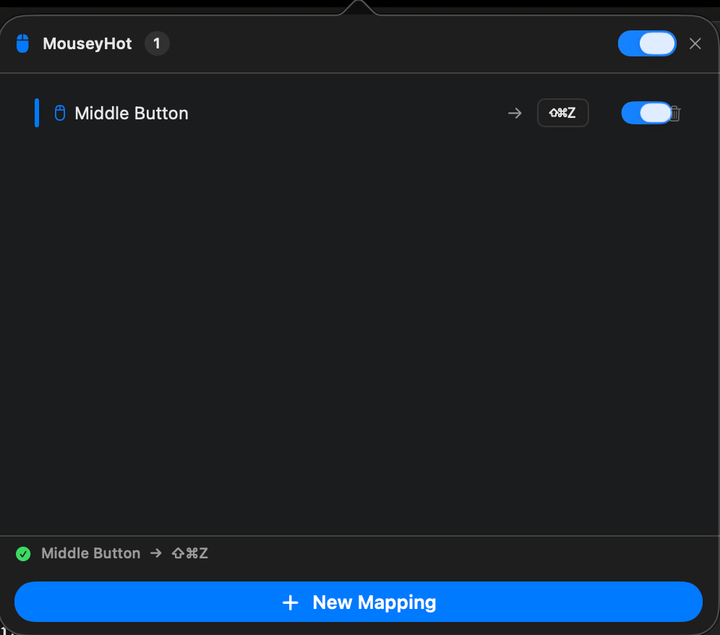
The menu bar popover: my middle mouse button mapped to my screenshot shortcut, toggled on. Add or flip mappings with a click.
For my own use, I mapped a mouse button to my screenshot-area shortcut, which is Command + Shift + Z, the custom shortcut I set inside my screenshot app. So now I press the button, drag a box around whatever I want to capture, and the image drops straight into the folder Screenshot Catalog is already watching. The moment it saves, the catalog app grabs it, runs its OCR, and files the text away. Two homemade apps quietly handing work back and forth.
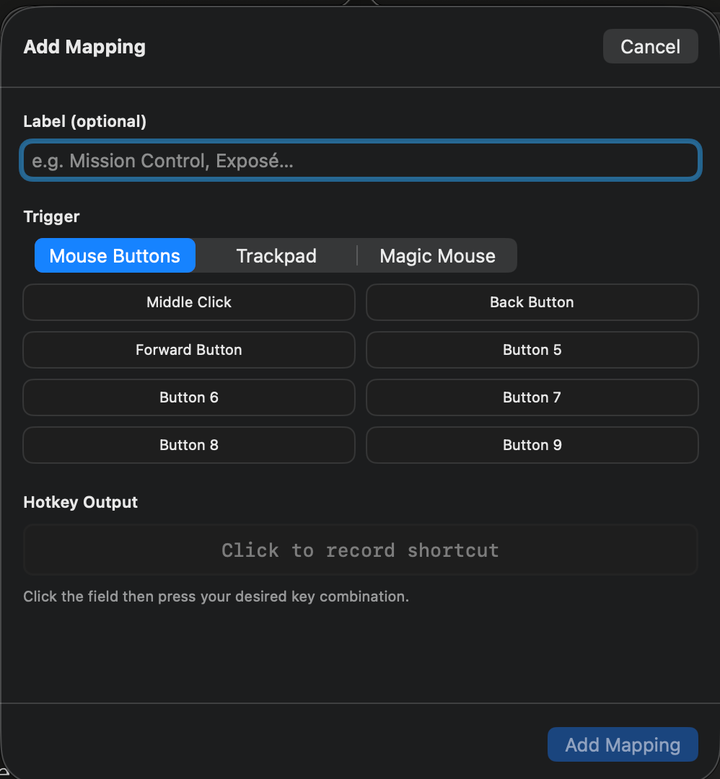
Adding a mapping: pick a mouse button, click the field, and press the shortcut you want it to fire. The recorder captures it, no key codes.
And of course I kept the plain keyboard shortcut too, so when my hand is already on the keys I just hit Command + Shift + Z directly. Belt and suspenders.
This time I went native
One detail I am a little proud of. Screenshot Catalog was built in Python. For MouseyHot, I wanted something that felt like an actual part of macOS: instant, tiny, no background bloat, no Electron. So I built it natively, directly on SwiftUI and AppKit.
That was a bigger stretch for me, a different language and a different toolset, and it is the kind of thing I would not have attempted on a whim before. It lives quietly in the menu bar, and because it monitors and emits system events, it needs macOS Accessibility permission to do its job. For a personal utility, it came out feeling surprisingly legitimate.
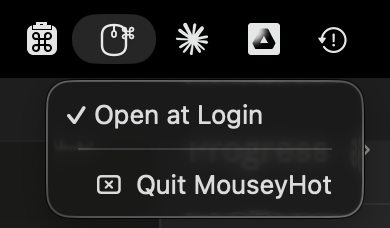
Lightweight and out of the way: it lives in the menu bar, opens at login, and quits whenever you want.
Good enough, and then some
Let me be upfront. I did not set out to build a product here. I set out to scratch one specific itch.
But if you have read my other posts, you know the theme by now. I would rather build the small tool that fits my workflow precisely than settle for a polished app that almost does what I want. The funny part is that in aiming for "good enough that I will actually use it," I ended up with something I use every single day and would happily hand to a friend.
Why I keep doing this
There is a bigger point hiding in this little utility.
A year ago, the calculation for a problem like this was automatic. Small annoyance, go find an app, accept whatever it does and whatever it costs. The idea of building my own solution for something this minor, in a language I did not even know well, would have felt absurd. Like churning your own butter because you did not like the brand at the store.
That math has changed for me. When building a small tool is fast and cheap enough, the balance tips. Now, when I hit a bit of friction that no existing app solves exactly the way I want, my first instinct is not to go shopping. It is to build the thing that fits my workflow precisely, even if that means picking up a new language to do it.
And there is something deeply satisfying about that. MouseyHot is not going to change the world. But it is mine, it does exactly what I want, and it plugs perfectly into the other tool I made, saving me a few seconds hundreds of times a day.
So if you have some tiny, specific annoyance that the polished apps almost solve but not quite, this is your nudge. The bar to just build your own has dropped through the floor. Make the little thing. If it works and you use it, that is all it needs to do.